Domains & Hosts Remainder Manager PRO
- Created: 19/03/2015
- Curent version: 3.0
- latest Update: 25/04/2015
- By: codeofthefreedom
- Email: codeofthefreedom@gmail.com
Features
Forget about loosing domains or hostings by late paying. The D&H PRO will check every day at fixed time all entries from database, and if some entries will expire after 30 day, 1 week or today- you will receive emails with alert renew domain/hosting messages. You can go directly from here to you registrar or hosting company by pressing the "Domain Status" or "Hosting Status" button from respective row.
Just install, add entries data, and that's it!!!.
If you have more than one domain, and use different hosting services, you know how difficult is to keep in mind what domain where is stored, and what dns and ip need to input in every hosting services, also the domains have one expiration date, and hostings have different.... So i made this tool for me to keep all organized and to not let expire some domains or hostings account. It very easy to install and just input once the domain, registrar, and hosting service. Thats all. The rest part of work will be done by D&H PRO Reminder Manager.
Just install it and forget about. D&H Remainder ManagerPRO will check every day at inputed hour the status of each domain/hosting expiration date, and if is = 30 days left, or 7 days left or today expire, will send an EMAIL and (or) SMS to inputed mail address and cell phone with alert message from template.
How does it work?
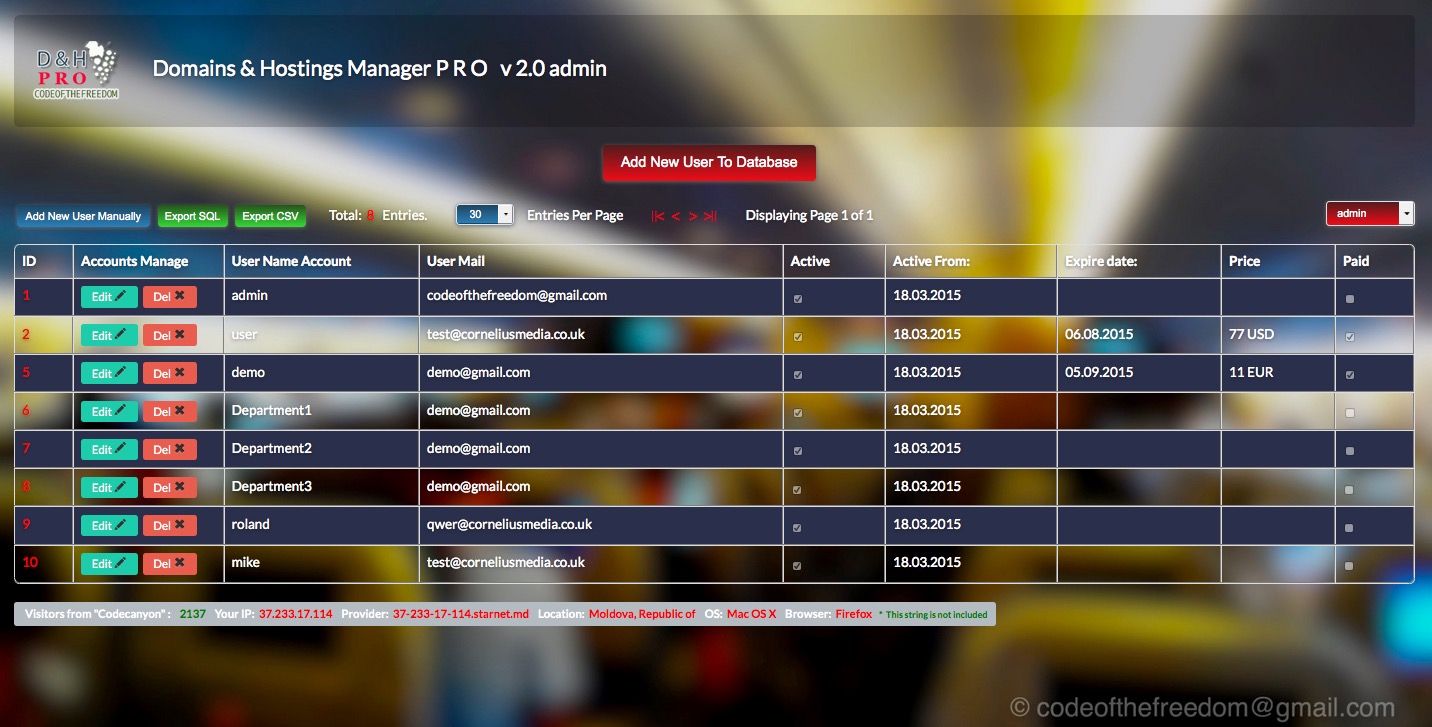
1. login as "admin" using password "password".
2. Add new users to main database.
3. Login as user.
4. Add domains to users database.
5. Set cron jobs time and email/cell number from settings page.
6. Click SAVE.
6. Start use DHR PRO.
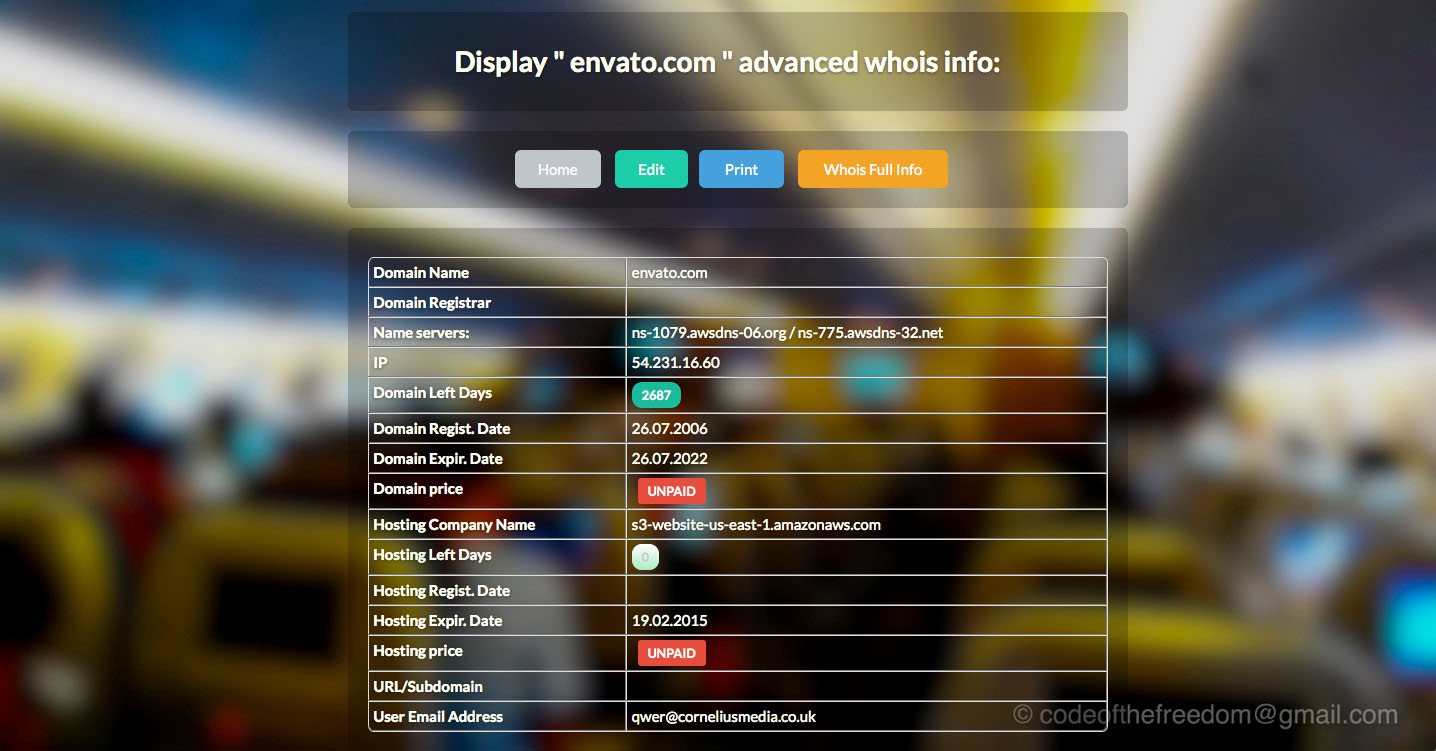
"D&H PRO" Manager "Home Page"
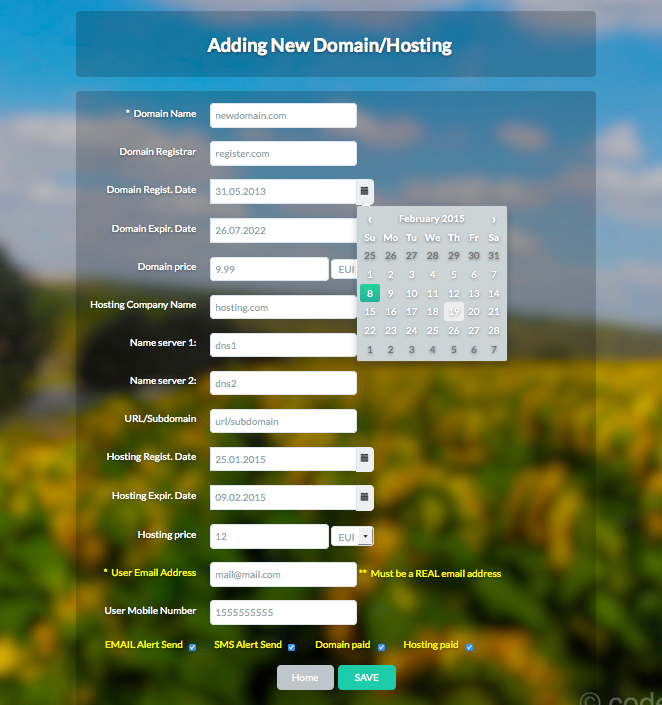
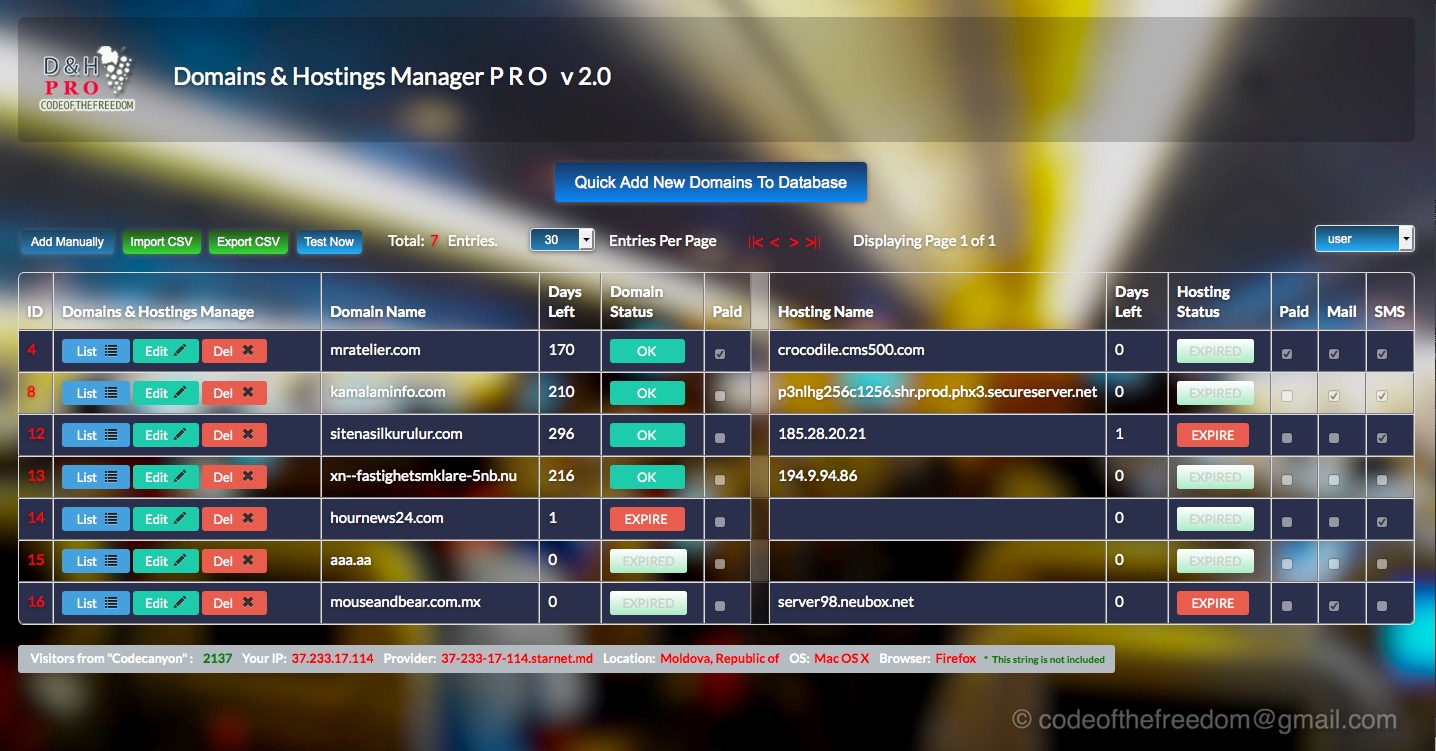 ADD new entries info.
Press "ADD new Domains/Hostings" button to add new entries. The red-labeled fields must be filled. If you want to receive email/sms expiration alert then check checkboxes. When done press "SAVE" button.
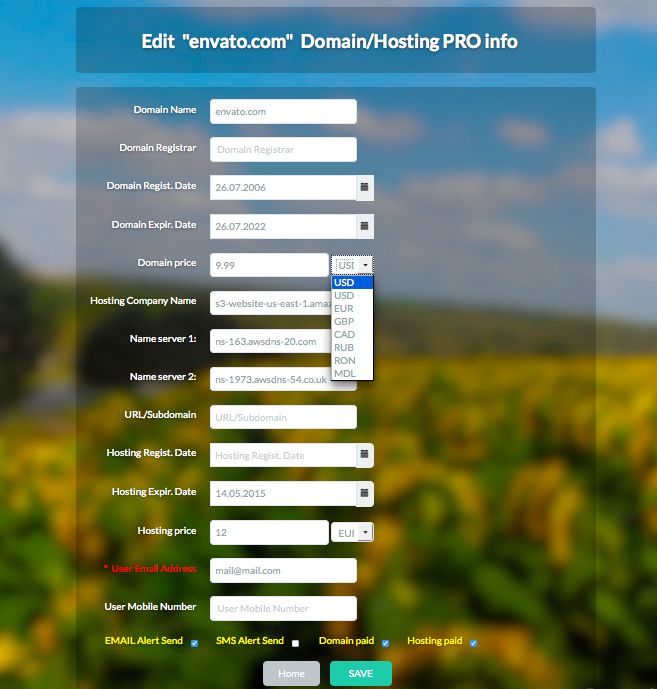
 EDIT entries info.
Press "EDIT" button to edit entries info. The red-labeled fields must be filled, and after press "SAVE" button.
 LIST entries all info.
Press "LIST" button to see all entries info.
Upgrade from previous version:
If you have installed and working DHR PRO version:
1. Upload the files from folder "upgrade to.." to your webserver and owerwrite existing files in your DHR PRO folder.
2. Start using DHR PRO with new features.
Installation Automaticaly:
If your server support automatically install, then you just need:
1. Unzip "dhrpro.zip" file and upload the "dhrpro" folder to your website, rename it if you like.
2. Run "install.php" from the "D&H PRO Manager" folder the first time once.
3. input the cpanel username and password, press "Make Magic" buttond and the rest job will be done by "D&H PRO Manager" AUTOMATICALLY !!!!
4. If all is ok- start index.php
4. Nothing more, just start using "D&H PRO Manager"!!!!
Installation Manulally:
1. Unzip "dhrpro.zip" file and upload the "dhrpro" folder to your website, rename it if you like.
2. Go to your cpanel and create new database, and create new user and grants all privillegies for this database.
3. Import the "dhrpro.sql" to new database.
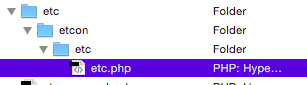
4. Go back to uploaded folder and edit the "etc.php" file from "etc/etcon/etc folder" and add new database name, new user database name, and server (localhost).
<?php
$db_name = "database_name" /** The name of the database for this install */;
$dbusername = "database_name" /** MySQL database username */;
$dbpassword = "database_password" /** MySQL database password */;
$server = "localhost" /** Don't need to change this */;
$userlicense = "Item Purchase Code" /** Item Purchase Code */;
?>
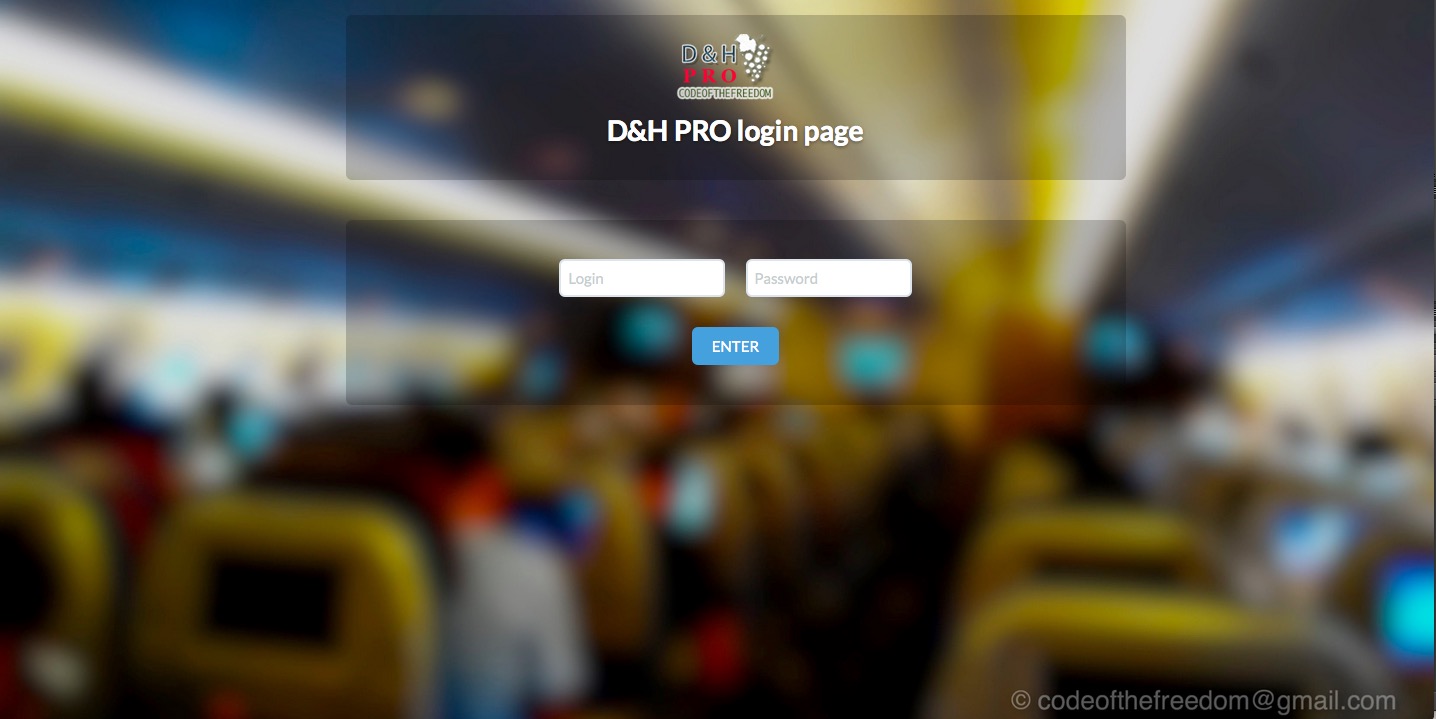
5. Start "index.php". You will see "D&H PRO" Login page.
Setup Admin Login & Password
6. Press "Admin login" button on left top of main page.
7. Input login and password. By default is: login = "admin", password = "password". Press "ENTER" button.
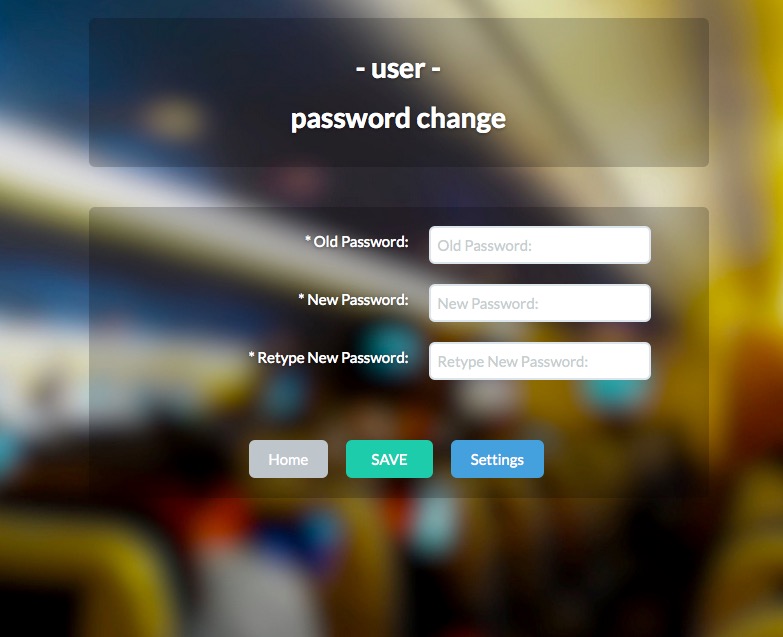
8. On main page press "Settings" button and go to "Settings" Page. Press "Admin pass" black button on bottom page and go to "Login/Password" page.

9. Here you can set admin login and password. Just input old login/pass and add new login/password twice abd press "SAVE".
Setup Templates
The template has this Tags:
{ exalert} - The COLOR of alert ex.- RED or YELLOW
{ what} - The TYPE of entries ex.- DOMAIN or HOSTING
{ whoexp} - The NAME of expirate entries ex.- www.somedomain.com or somehosting.com
{ dateofexpire} - The DATE of expire entries ex.- dd.mm.YYYY
{ whourl} - The URL of REGISTRAR or HOSTINGS SERVER ex.- www.somedomain.com or somehosting.com
{ when} - The DAYL LEST till expirate ex.- AFTER 7 DAYS.
A possible variant can be:
!!! THE {what} {whoexp} WILL EXPIRE {when} ON {dateofexpire}. PLEASE GO TO {whourl} AND RENEW SUBSCRIPTION. D&H PRO Manager.
The received Email will have this content:
!!! THE DOMAIN somedomain.com WILL EXPIRE AFTER 7 DAYS ON 27.NOV.2013 . PLEASE GO TO regisrar.com AND RENEW SUBSCRIPTION. D&H PRO Manager.
Setup Cron Jobs
On main page press "Settings" button and go to "Settings" Page. Here we can setup the cron jobs.
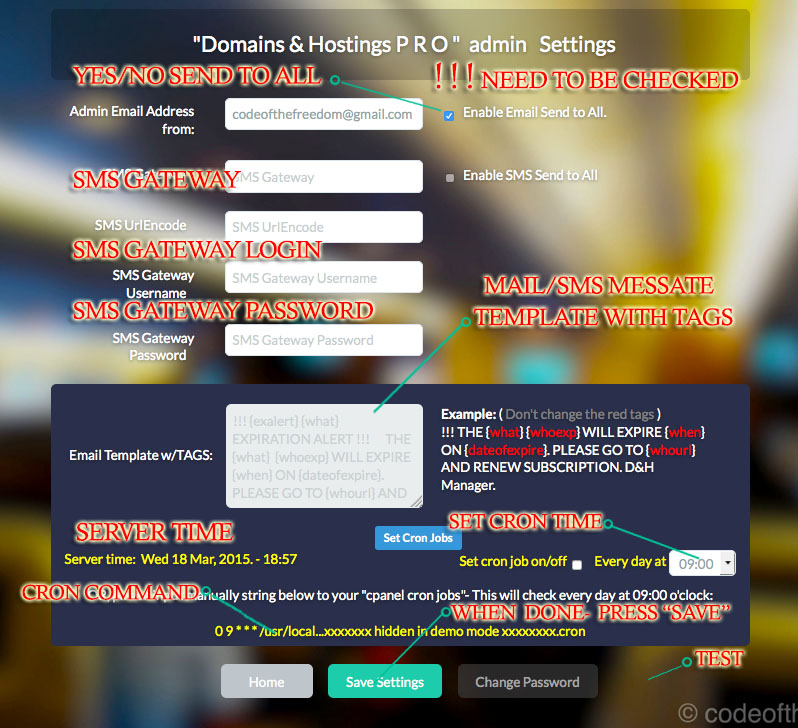

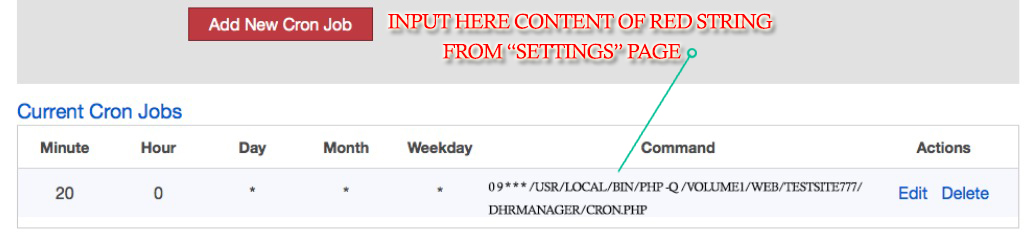
Go to your cpane and open Cron Jobs and check if the command is stored in crontab.
If exist- that's it. Cron jobs is successfuly started!
If not, then this mean that your server is not supportting auto-input cron jobs, so, please just copy the red string from "Settings Page" with crontab command, and manually input it to your cpanel Cron Jobs.
Contacts
For suggestion and question please mail to codecanyon profile.
codeofthefreedom@gmail.com
Good luck.
That's it !!!
This documentation was made only with the Documenter (except the images)